Synchrogen

    Every screen of the editor, step by step.

    The Synchrogen editor is where your team reviews dubbing, subtitles and audio description on one timeline before anything ships. Below: what it does for each version, then a tour of real screenshots from the desktop app. Features marked Early access are rolling out gradually.

    Updated 2026-11-22 · Windows, macOS, Linux

    One editor, three versions

    Dubbing

    Review every dubbed line

    Each dubbed line sits next to the original dialogue on the timeline. Correct the translation, fix a name or pronunciation, switch the voice, regenerate the line and approve it. Export a dubbed mix or separate voice stems per language.

    • Line-by-line review against the original
    • Regenerate a single line after an edit
    • Mix or stems per language
    • Cloud feature: needs an internet connection
    Subtitles

    Subtitles on the same timeline

    Cues are created from the transcribed dialogue, checked for reading speed and line length, and edited on the same timeline as the other versions. Export SRT, or burn them into the video.

    • Cues from the dialogue
    • Reading-speed and line-length checks
    • SRT export, burned-in video
    • Early access
    Audio description

    Write, time and voice descriptions

    Scene detection and transcription find the gaps between dialogue. Describers write and time each description, voice it with built-in narration or their own voice, and approve every clip before export. Works fully in local mode.

    • Gaps found automatically
    • Timeline and script view
    • Built-in narration or your own voice
    • Runs without the cloud

    Step 01 / 09 · All versions

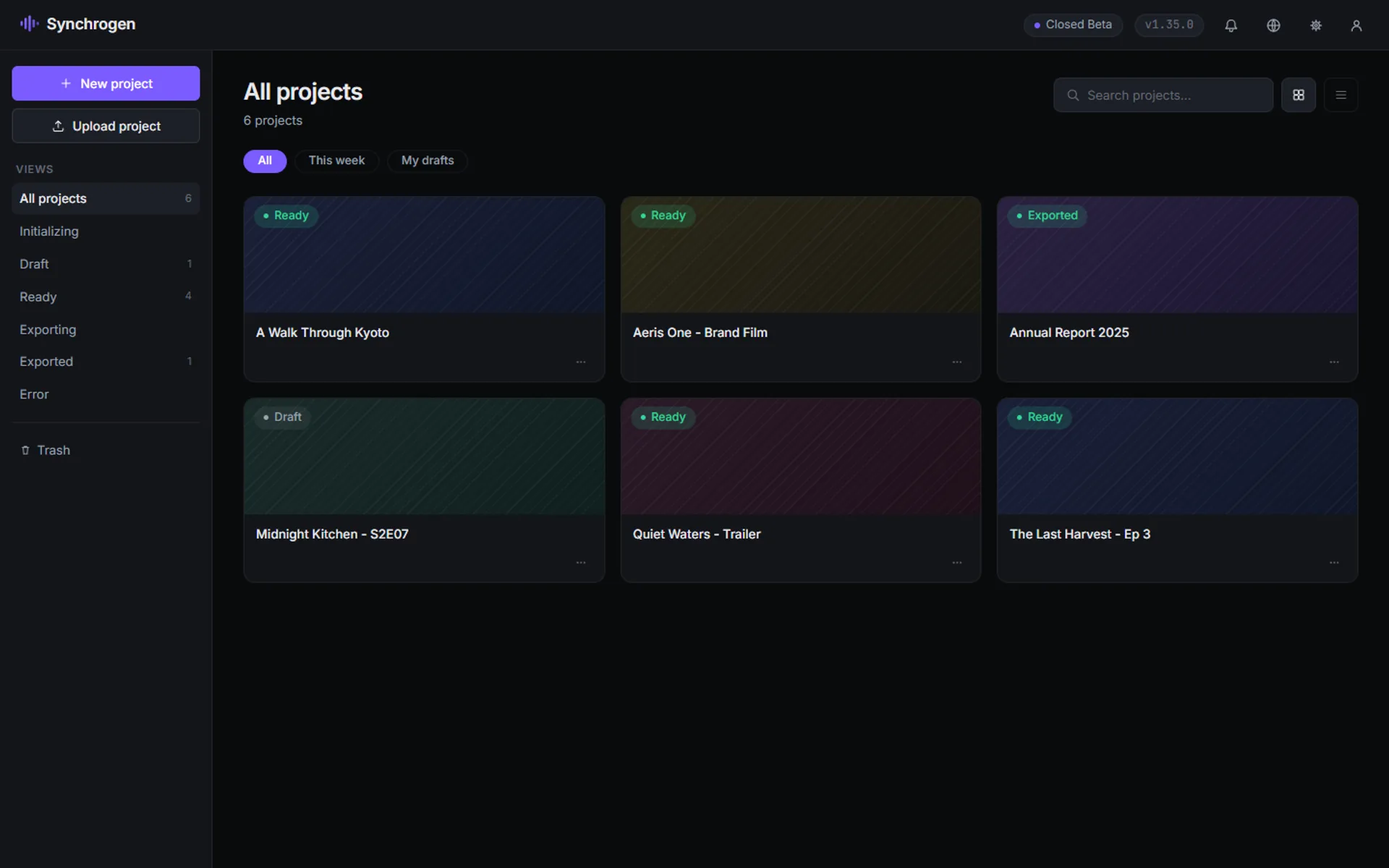
    Your project catalogue

    Every project in one place, with its status, as a grid or a list. Filter by status, search by name, and bring a project over from another machine with Upload project.

    • Status views and filters
    • Search across projects
    • Import a project archive
    Synchrogen · ProjectsDesktop app
    Synchrogen desktop app: Your project catalogue

    Step 02 / 09 · All versions

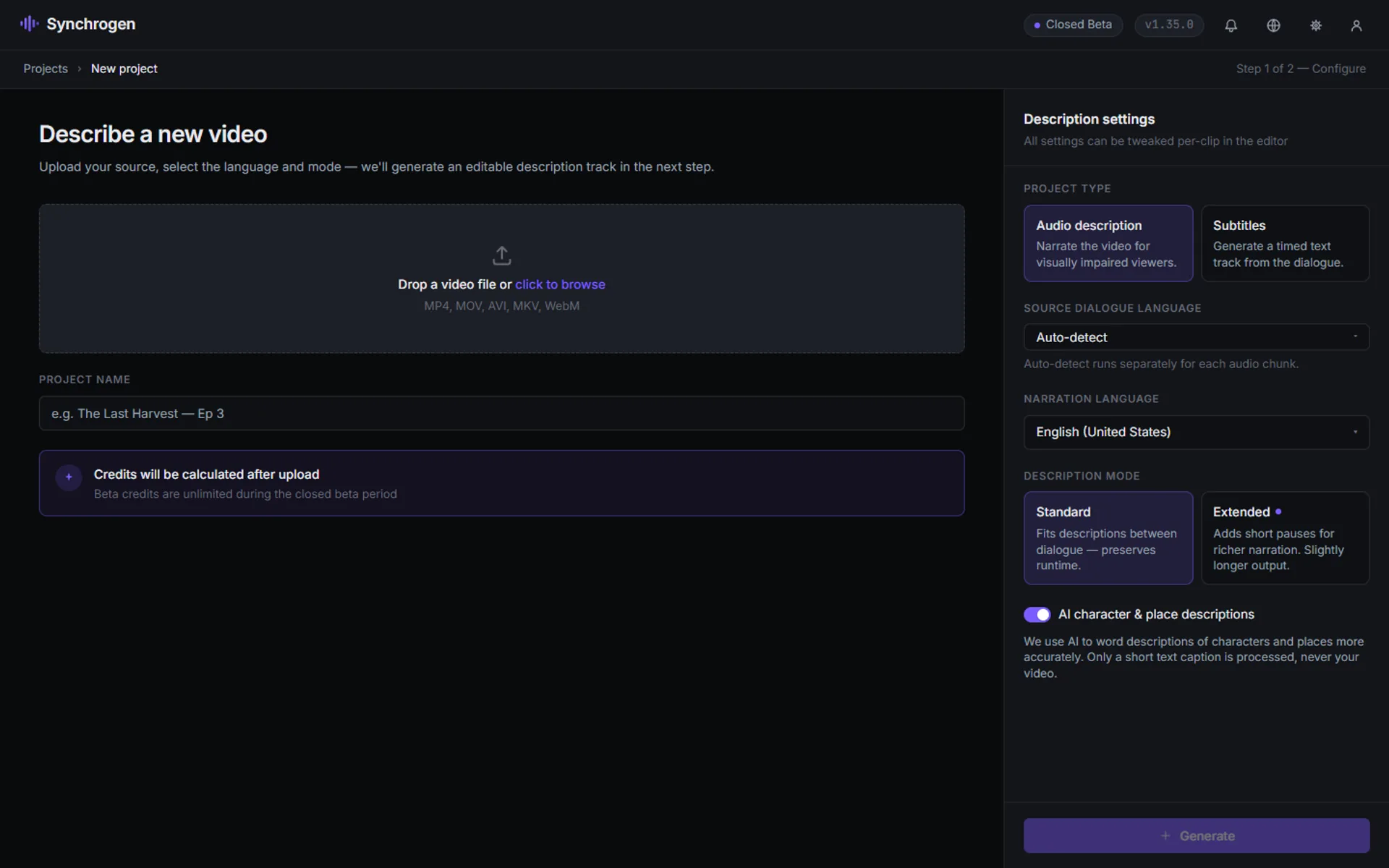
    Start a project in a minute

    Drop in a video, name it and set the essentials: source language, narration language, and Standard or Extended description mode. Extended adds short pauses so longer descriptions can fit. The dialogue language can be detected automatically.

    • Standard or Extended mode
    • Auto-detect dialogue language
    • Subtitles project typeEarly access
    Synchrogen · New projectDesktop app
    Synchrogen desktop app: Start a project in a minute

    Step 03 / 09 · Audio description

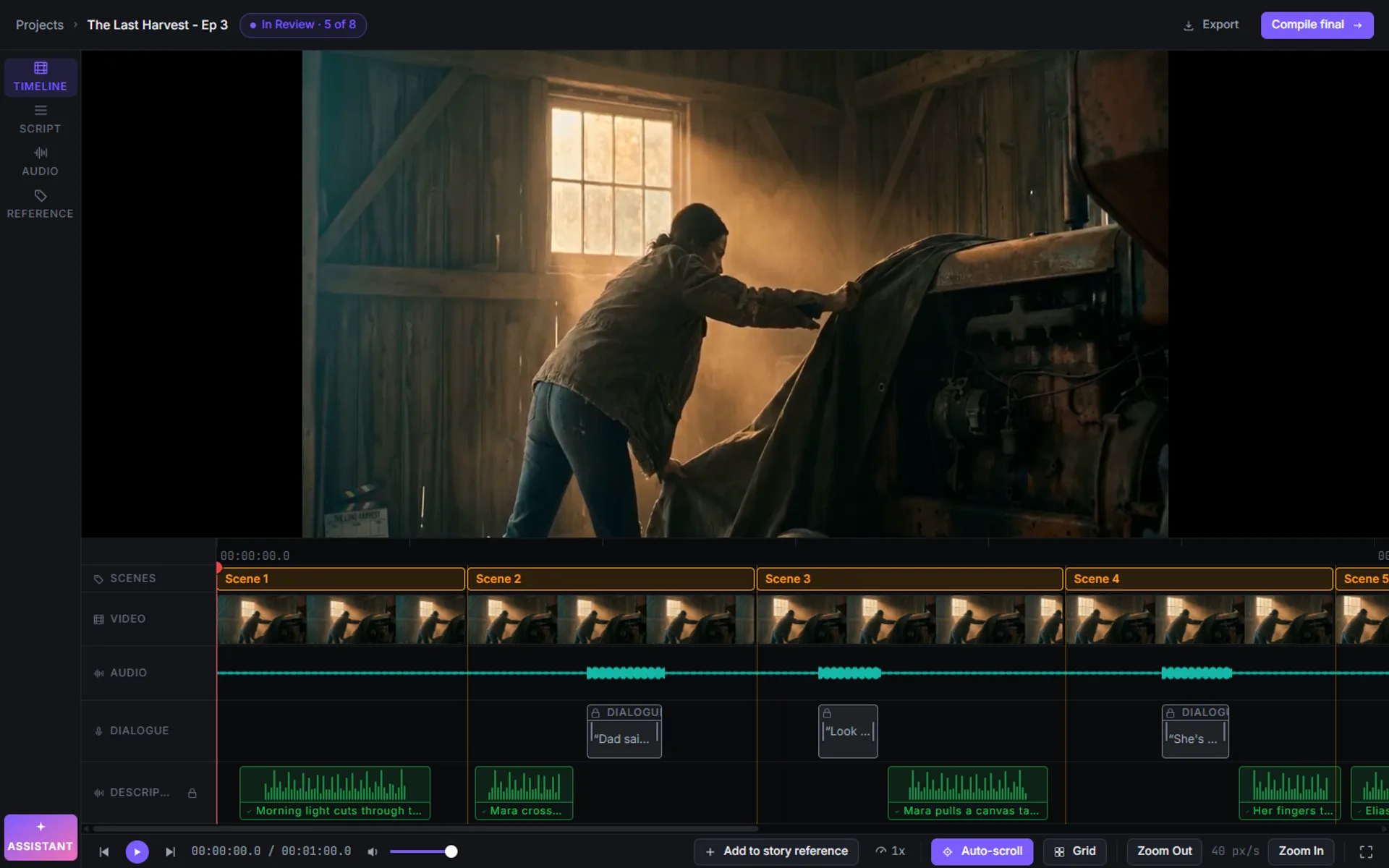
    Write and time on the timeline

    Scenes, video stills, the source audio waveform, locked dialogue and your descriptions share one timeline. Scene detection and transcription run on your machine. You see exactly where each description sits against the dialogue, and you are warned when one runs past its window.

    • Scene detection and video stills
    • Dialogue transcribed and locked: it always wins
    • Waveform, playhead and auto-scroll
    Synchrogen · TimelineDesktop app
    Synchrogen desktop app: Write and time on the timeline

    Step 04 / 09 · Audio description

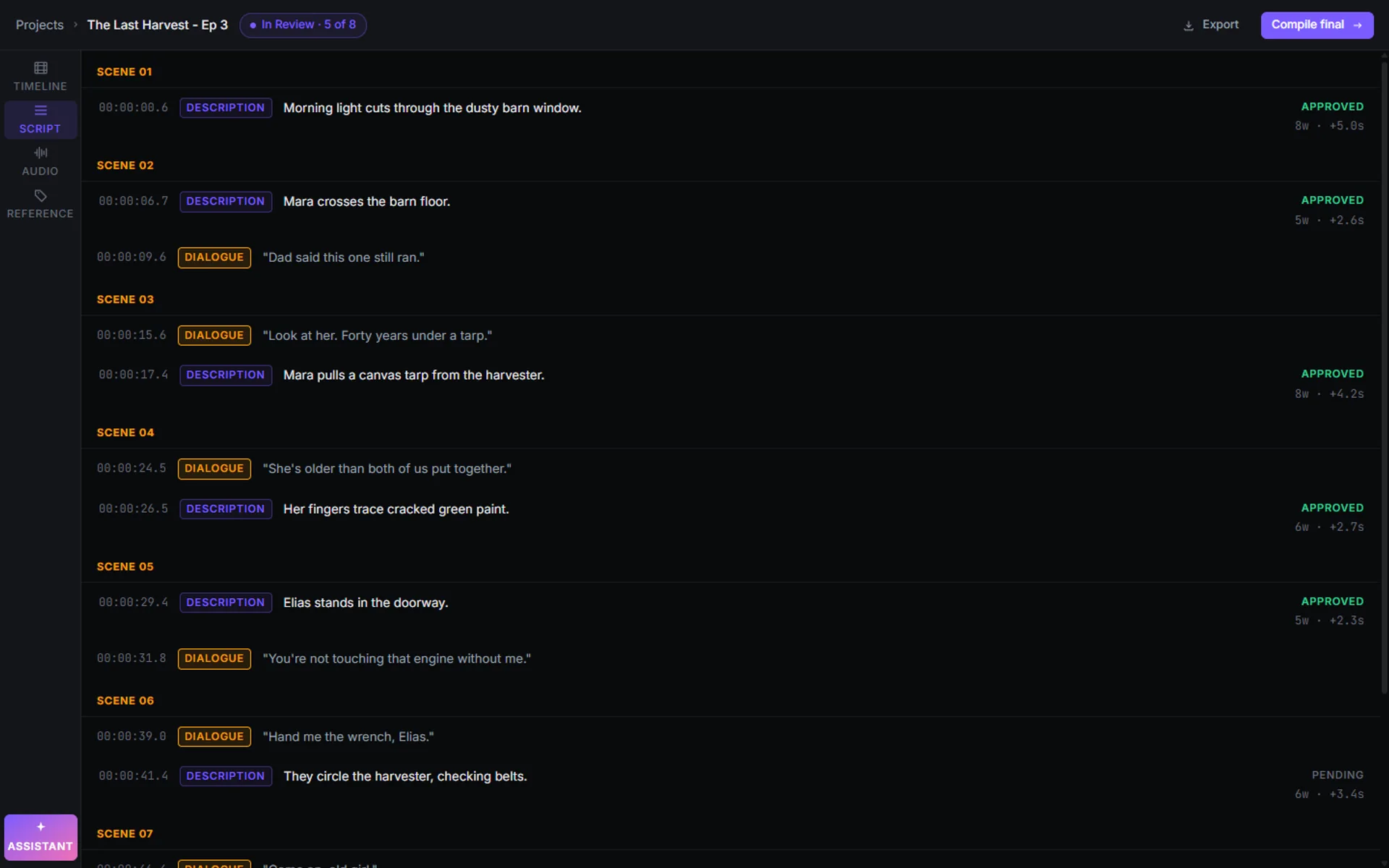
    Or work in script view

    Prefer to read it like a script? Scenes, dialogue and descriptions appear in reading order. Each description shows its word count, its time slot and its approval state, and is flagged when it is too long for the gap.

    • Word count against time slot
    • Too-long flags
    • Explicit approval for every clip
    Synchrogen · ScriptDesktop app
    Synchrogen desktop app: Or work in script view

    Step 05 / 09 · Audio description

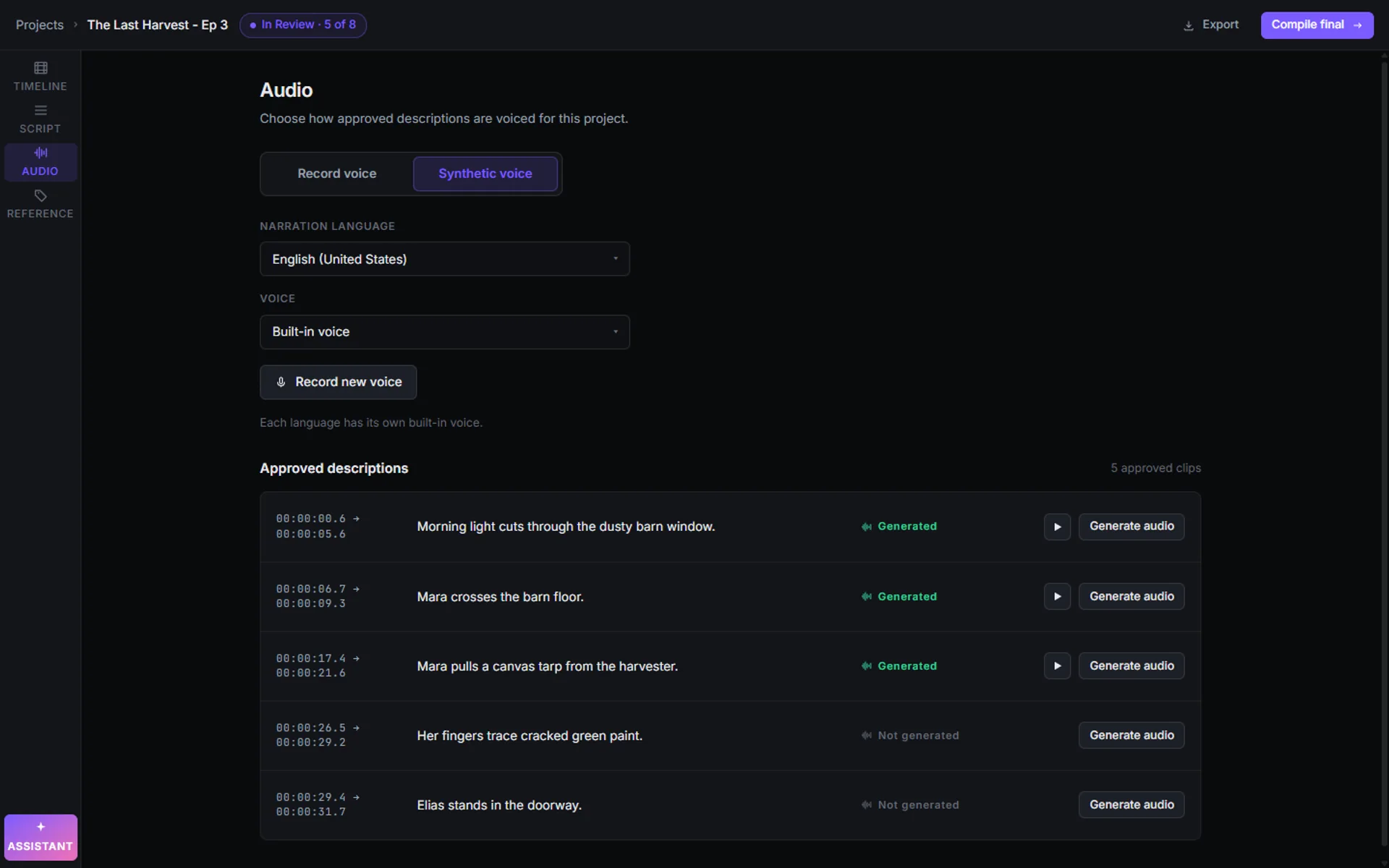
    Voice it, or record it

    Pick a built-in narrator for your narration language, voiced on your machine, or record your own voice clip by clip. Generate the audio for each approved description and listen to it against the video.

    • Built-in on-device narration
    • Record your own voice
    • Custom voicesEarly access
    Synchrogen · AudioDesktop app
    Synchrogen desktop app: Voice it, or record it

    Step 06 / 09 · Audio description

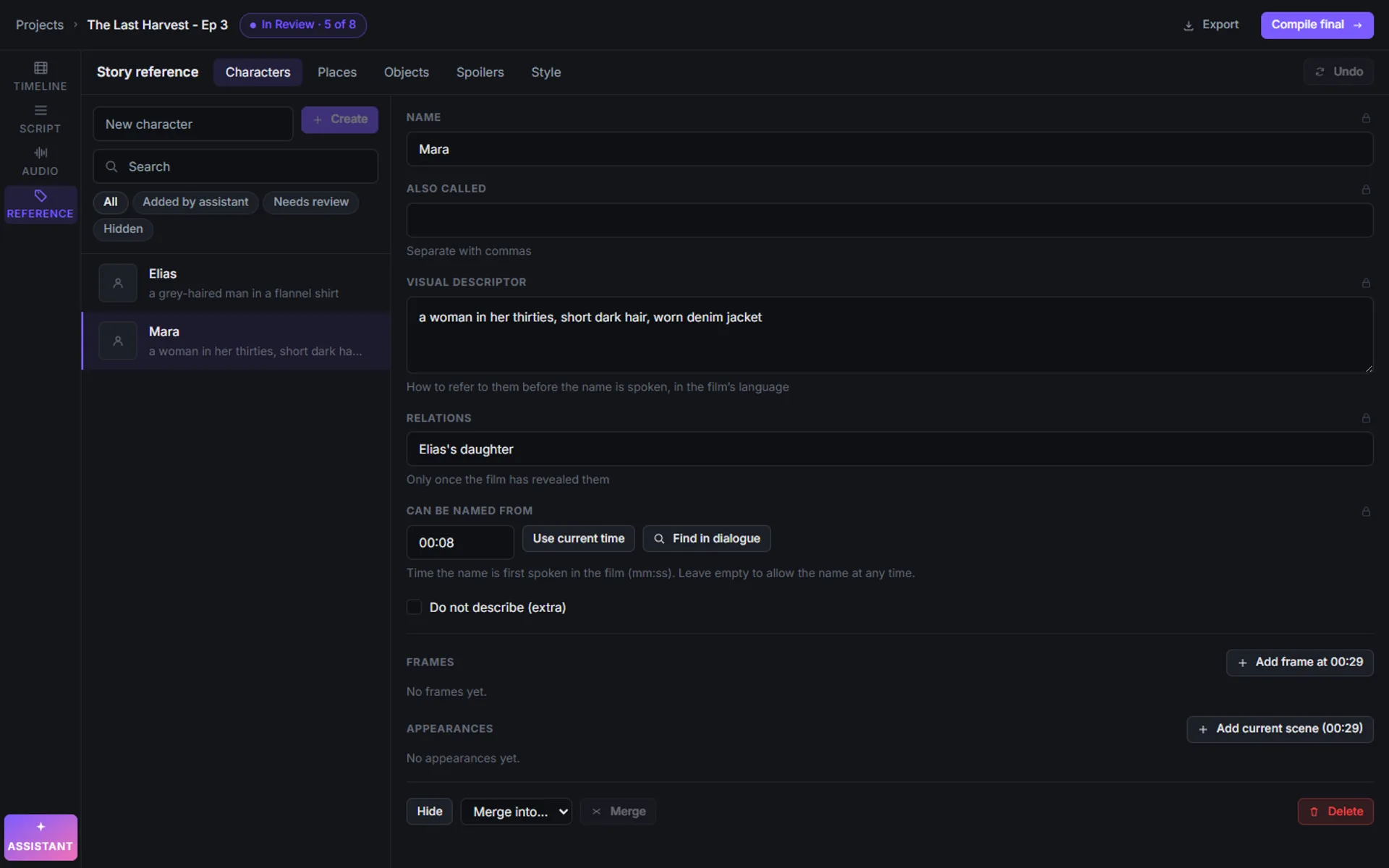
    Keep the story straight

    A reference for each project: characters, places, objects, spoiler rules and style. Descriptions name people consistently and avoid giving away the plot. Characters and places found in the video can be added to it.

    • Characters, places and objects
    • Spoiler rules with timecodes
    • Story referenceEarly access
    Synchrogen · Story referenceDesktop app
    Synchrogen desktop app: Keep the story straight

    Step 07 / 09 · Audio description

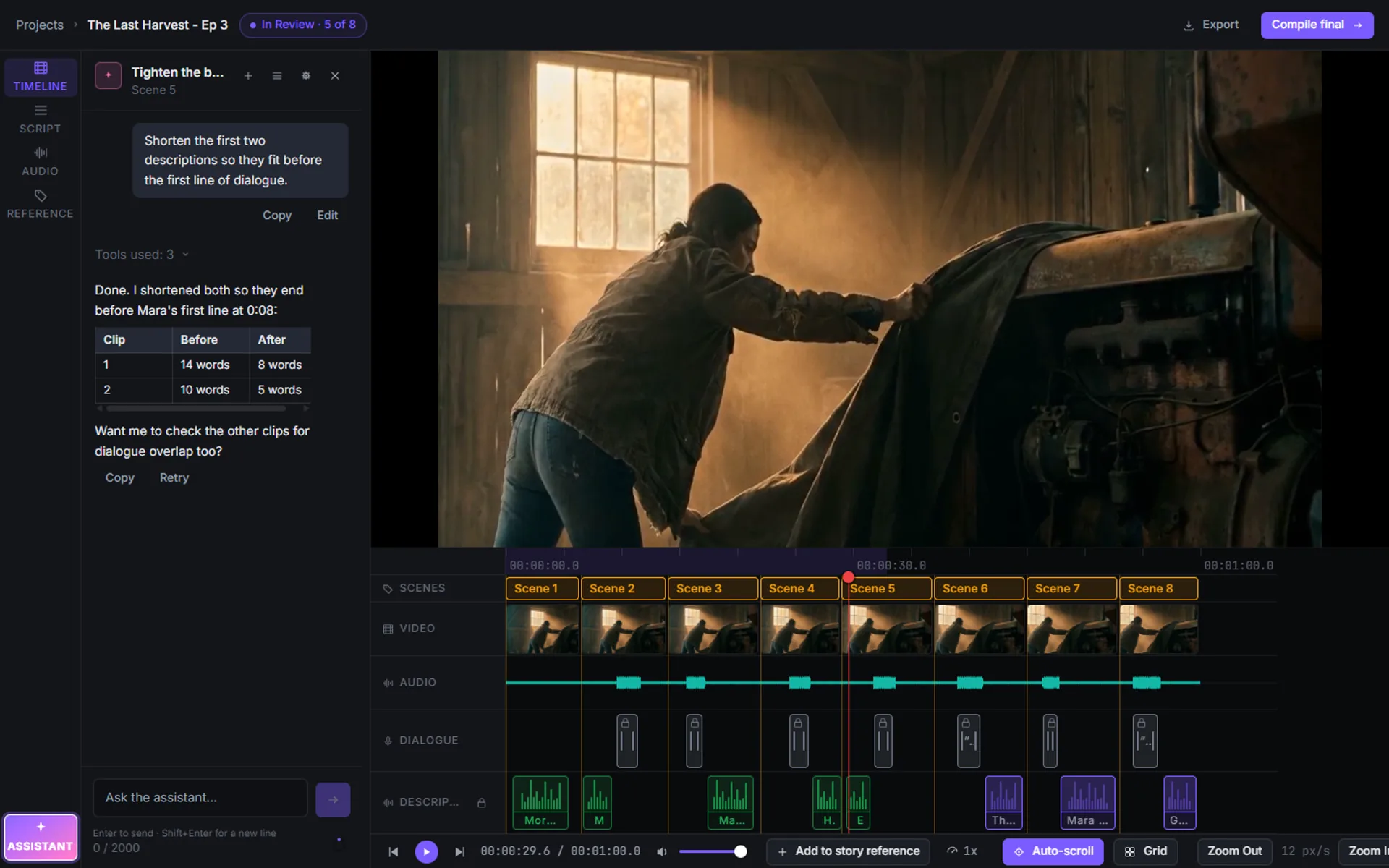
    Ask the assistant

    A chat beside the timeline that can read your project, rewrite a description, check it against the dialogue and extend the story reference. Its tool calls are listed in the chat. It works on text from your project and chat, never on the video file, and you decide what stays.

    • Chats saved per project
    • Text only, never your video
    • AI assistantEarly access
    Synchrogen · AssistantDesktop app
    Synchrogen desktop app: Ask the assistant

    Step 08 / 09 · All versions

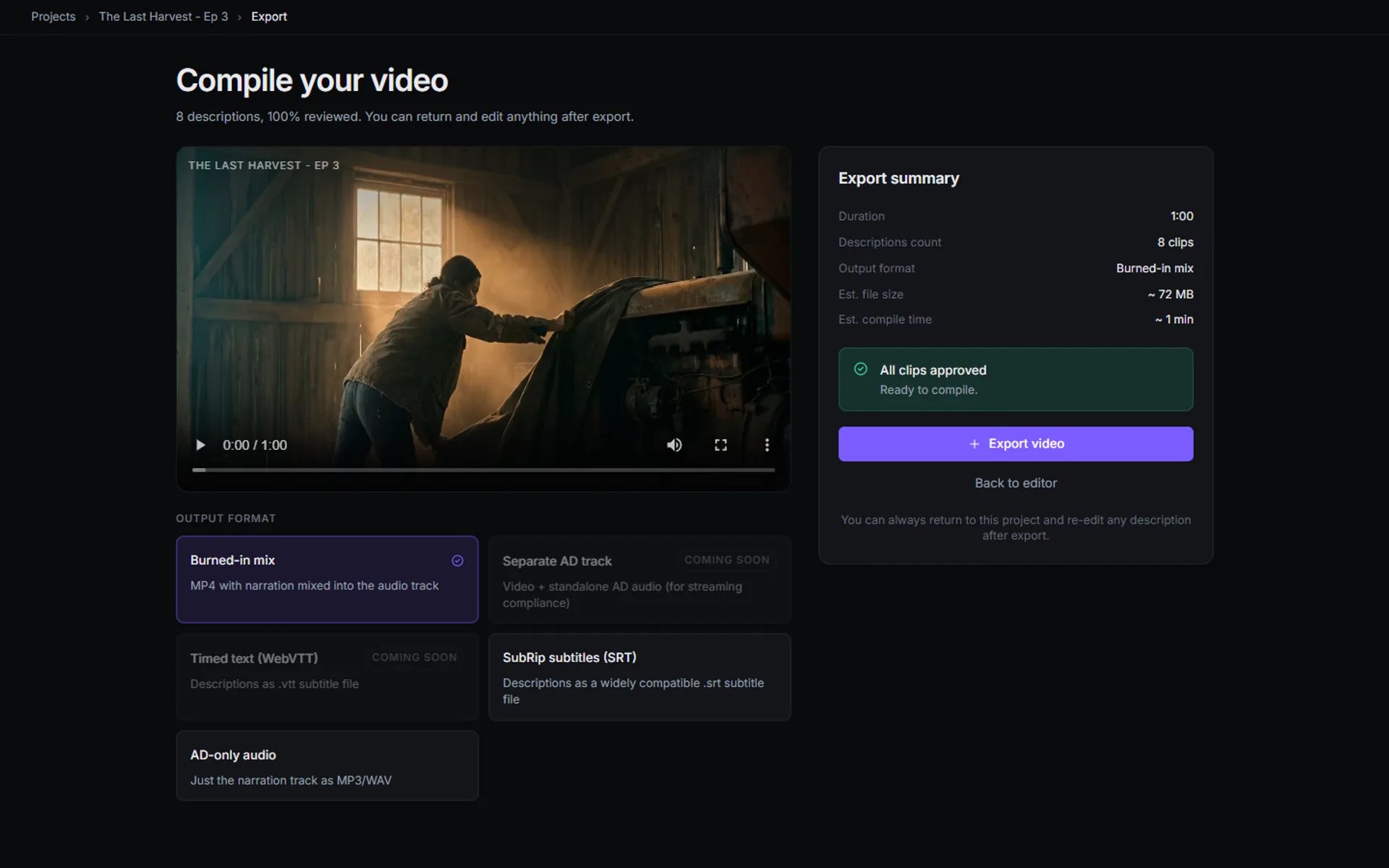
    Review, then export

    Compile unlocks once every clip is approved, so nothing ships unreviewed. Export a burned-in MP4 mix, an AD-only audio track (MP3 or WAV) or SRT subtitles. A separate AD track and WebVTT are marked as coming soon in the app.

    • Burned-in MP4 mix
    • AD-only audio, MP3 or WAV
    • SRT subtitles
    Synchrogen · ExportDesktop app
    Synchrogen desktop app: Review, then export

    Step 09 / 09 · Subtitles

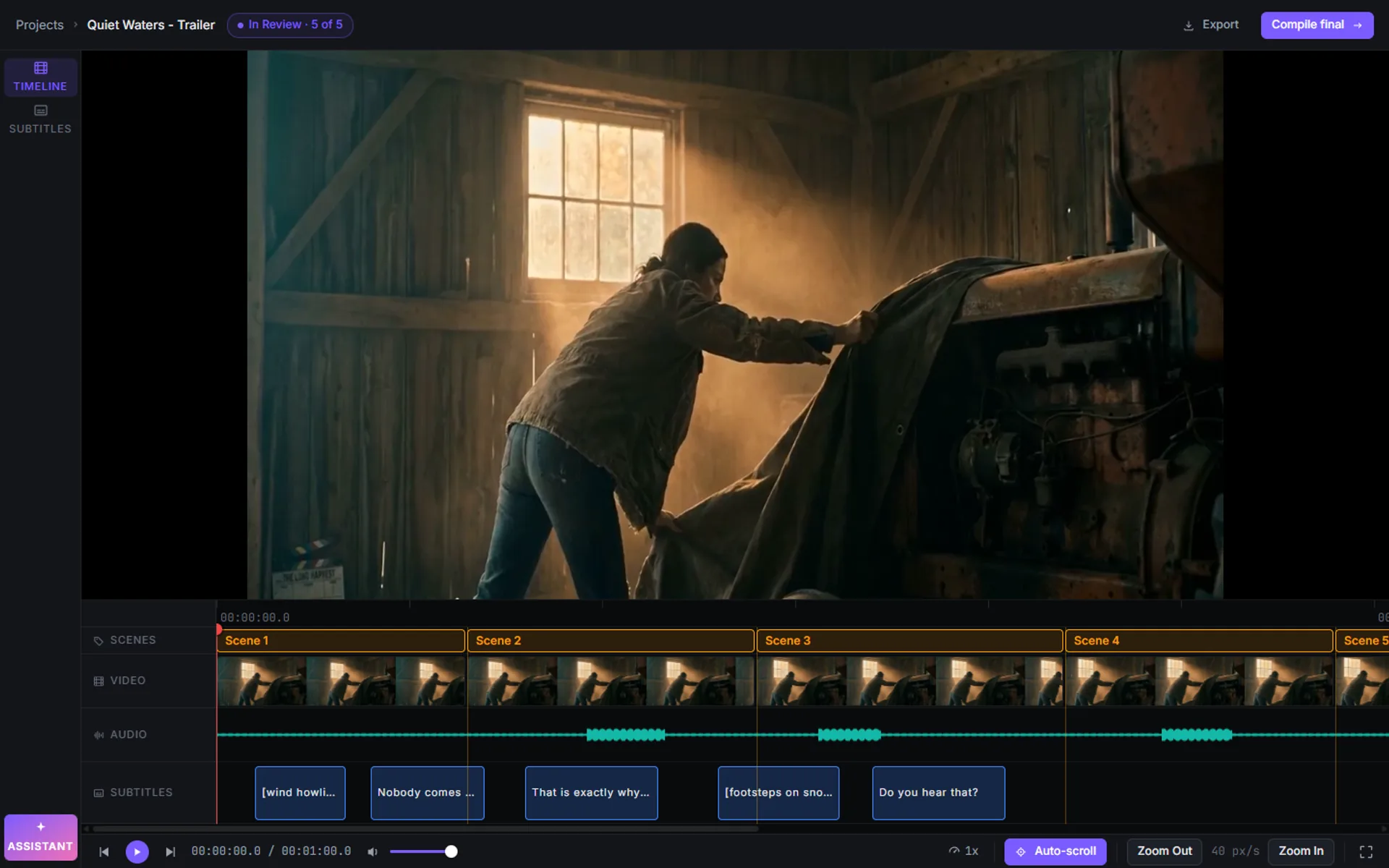
    Subtitles on the same timeline

    Subtitles projects reuse the timeline: cues are generated from the dialogue, checked for reading speed and line length, and edited in a cue list.

    • Cues from the dialogue
    • Reading-speed checks
    • Subtitles projectsEarly access
    Synchrogen · SubtitlesDesktop app
    Synchrogen desktop app: Subtitles on the same timeline

    Frequently asked questions.

    01What is the Synchrogen editor for?+

    The Synchrogen editor is a desktop app for Windows, macOS and Linux where localization and accessibility teams review AI dubbing, subtitles and audio description on one timeline against the original dialogue, correct and regenerate individual lines, approve them and export every version.